Administrator Guide — Enabling CeeDee
Administrator Guide — Enabling CeeDee
This section is intended for CulinarySuite Administrators. It covers the exact steps required to enable CeeDee for specific user roles within your organisation.
Overview
CeeDee is enabled through the Feature Access settings in CulinarySuite using the feature name DISPLAY_SWITCH_PRODUCT_FRUITS. Enabling it for a role makes the Ask CeeDee button visible to all users assigned to that role.
Step-by-Step: Enabling CeeDee
| Step | Action | Details |
|---|---|---|
| 1 | Navigate to Feature Access | Log in as an Administrator and go to the Feature Access settings within CulinarySuite. |
| 2 | Select the Application | In the Application Name field, select the relevant application for your organisation. |
| 3 | Select the Feature Name | In the Feature Name dropdown, select: DISPLAY_SWITCH_PRODUCT_FRUITS |
| 4 | Select the Role Name | In the Role Name dropdown, select All to view all roles, or filter to the specific role you are enabling. |
| 5 | Locate the Product Fruits role | In the Feature Access Mapping table, find the row labelled Product Fruits. |
| 6 | Enable the Switch | Tick the Switch checkbox next to Product Fruits to enable CeeDee for that role. |
| 7 | Assign the role to the user | Ensure the user(s) who should have CeeDee access are assigned the Product Fruits role in their user profile. Without this role assignment, the button will not appear even if the feature is enabled. |
| 8 | Notify affected users | Inform users that they must refresh the Dashboard page or log out and back in for the change to take effect. |
Feature Access Screen Reference
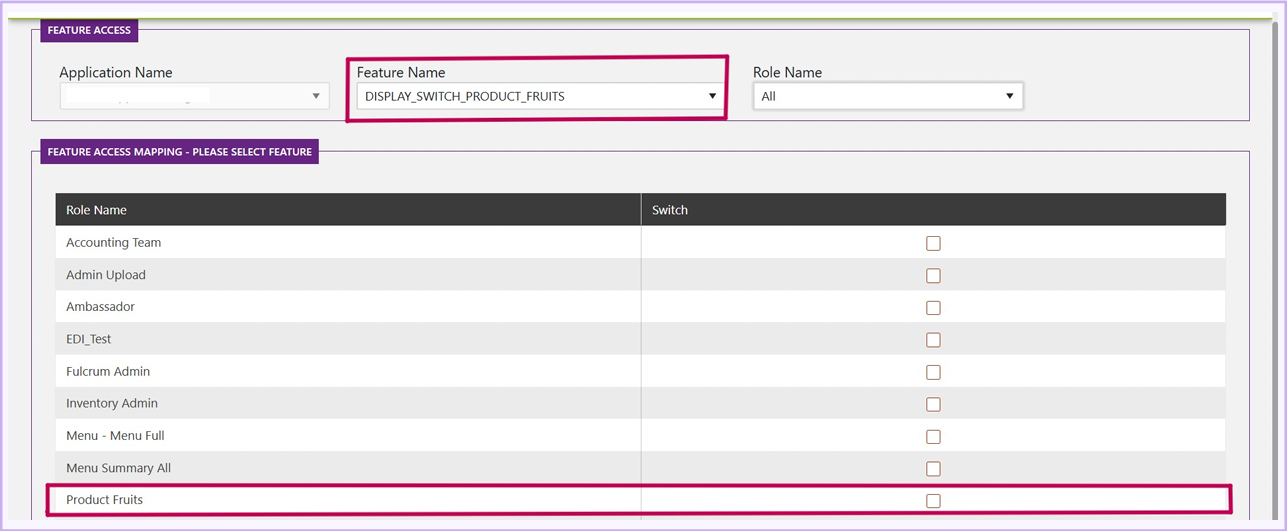
The screenshot below shows the Feature Access screen with the correct configuration. Note the feature name DISPLAY_SWITCH_PRODUCT_FRUITS selected in the dropdown, and the Product Fruits role row highlighted at the bottom of the mapping table.
After Making Changes
After enabling or disabling CeeDee access for any role, users will NOT see the change immediately. To apply the update, affected users must either: (1) navigate to the Dashboard page and refresh, OR (2) log out and log back in to CulinarySuite. This applies every time an Administrator makes a change to the CeeDee feature toggle.
Disabling CeeDee
To remove access from a role, follow the same steps above and uncheck the Switch next to the Product Fruits role. Affected users must again refresh or re-login for the change to take effect.